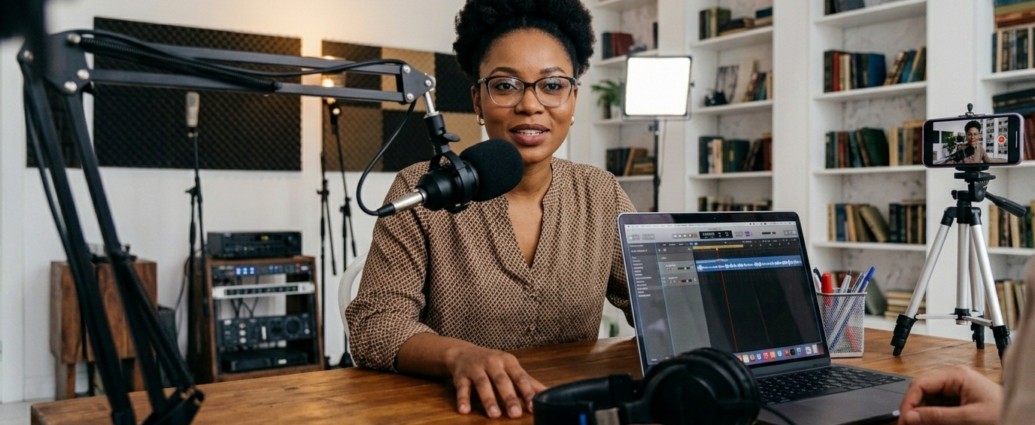
The practical companion for educators who are serious about course quality and want to understand not just which tools exist, but why each one earns its place in a professional workflow.
The Wrong Question Most Educators Ask First
I have reviewed a lot of L&D technology in my work: tools, platforms, authoring environments, and recording setups. And the pattern I keep seeing is the same one: educators start by asking which microphone to buy, or which camera is best for online teaching, before they have answered the more important questions. What kind of course are they building, for whom, and in what environment will it be learned?
The setup follows the pedagogy. When educators reverse that order, when the equipment decision comes before the instructional decision, they usually end up with gear that does not serve their actual workflow, or software they will never fully use. I have seen L&D teams spend significant money on authoring tools and then deliver flat, talking-head video lectures that could have been recorded on a phone.
This guide is built differently. Every tool in it is organised around the function it serves in the course creation process. Not around brand reputation, price, or what is trending on YouTube. By the end of it, you should be able to make a confident decision about what to set up now, what to add later, and most importantly, why each item earns its place in a serious educator’s workflow.
Think In Three Layers, Not In Shopping Lists
Here is the mental model I use when advising educators on their course creation setup. Every tool, physical or software, lives in one of three layers, and understanding which layer you are working in determines what you actually need.
| LAYER 1: Production | LAYER 2: Design | LAYER 3: Delivery |
| What learners see and hear. Microphones, cameras, lighting, recording software, video editing. | What learners see and hear. Microphones, cameras, lighting, recording software, and video editing. | How the course is structured and built. Planning tools, slide builders, authoring environments, and interactivity. |
This matters because the three layers have very different cost profiles, very different learning curves, and very different consequences when you get them wrong. A weak production layer is immediately visible to the learner. A weak design layer is felt over time: the course starts well, but loses people by module three. A weak delivery layer means the course never reaches the learners it was built for, or reaches them in a way that makes completion harder than it should be.
Layer One: The Production Setup
This is the layer most educators think about first, and with good reason. It is the most visible. But it is also the layer most vulnerable to over-investment. Let me be direct about the priority order, because most guides get this wrong.
Audio Comes First. Always.Learners will tolerate imperfect video. They will not tolerate poor audio. A recording that sounds echoey, tinny, or full of background noise signals to the learner, consciously or not, that the educator did not take their time seriously. That perception damages credibility before the first slide is finished.
For educators recording in a home office, living room, or spare room in Nairobi or anywhere across the continent, the acoustic environment is usually the bigger problem, not the microphone brand. A USB condenser microphone (Blue Yeti and Rode NT-USB are the reliable entry points) will expose every flaw in a reflective room. Before investing in an expensive microphone, address the room: a heavy curtain behind you, a bookshelf behind the camera, or even recording inside a wardrobe can make a significant difference. Acoustic foam panels are cheap and effective if permanent treatment is not an option.
For educators who record on the move: visiting schools, delivering in multiple locations, working without a fixed studio, a wireless lapel microphone is often more practical than a condenser. The Rode Wireless GO II delivers broadcast quality at a reasonable investment and clips directly to clothing, leaving both hands free.
Video: The Bar Is Lower Than You Think.Modern learners are accustomed to a range of video qualities: from polished studio productions to phone-recorded explainers. What they respond to is authenticity and clarity, not cinematic production values. A good webcam at 1080p (Logitech Brio is the standard recommendation) or a basic mirrorless camera like the Sony ZV-E10 is more than adequate for talking-head instruction. The bigger variable is usually framing and lighting, both of which cost less than the camera itself.
Lighting: Three-Point or Nothing.If you are recording video with yourself in frame, invest in a key light before investing in a better camera. The Elgato Key Light and equivalent LED panel lights are now affordable and make an immediate, visible difference. A fill light on the opposite side removes harsh shadows, and a small backlight separates you from the background and adds visual depth. Three lights. That is the production setup for 90% of what online course educators need.
PRODUCTION LAYER — HARDWARE
| Tool / Device | What It Does For The Educator | Type | Product page |
|---|---|---|---|
| Blue Yeti USB mic | Primary recording — clear, directional audio for desk-based recording | Physical | www.bluemic.com/en-us/products/yeti |
| Rode NT-USB mic | Alternative USB condenser — warm sound, built-in headphone monitoring | Physical | rode.com/en/microphones/usb/nt-usb |
| Rode Wireless GO II | Mobile lapel recording — broadcast quality, clip-on, no cable required | Physical | rode.com/en/microphones/wireless/wirelessgoii |
| Audio-Technica AT2020 | Entry XLR condenser — requires interface, studio-quality capture | Physical | www.audio-technica.com/en-us/at2020 |
| Focusrite Scarlett Solo | Audio interface — connects XLR mics to computer, clean preamp | Physical | focusrite.com/downloads/scarlett-solo-studio |
| Boom arm + pop filter | Mic positioning — eliminates plosives, frees up desk space | Physical | www.rode.com/en/accessories/arms-bars/psa1 |
| Sony MDR-7506 headphones | Audio monitoring — detect recording issues before they reach learners | Physical | pro.sony/ue_US/products/headphones/mdr-7506 |
| Acoustic foam panels | Room treatment — reduces echo and reverberation in non-studio spaces | Physical | www.acoustimac.com |
| Logitech Brio 4K webcam | Video recording — plug-and-play 4K, excellent for talking-head content | Physical | www.logitech.com/en-us/products/webcams/brio-4k-hdr-webcam.960-001105.html |
| Sony ZV-E10 mirrorless camera | Higher-quality video — shallow depth of field, interchangeable lenses | Physical | www.sony.com/en/articles/zv-e10 |
| Elgato Key Light | Primary lighting — LED panel with app control, even facial illumination | Physical | www.elgato.com/en/key-light |
| Camera tripod / desktop arm | Stable framing — consistent shot height and composition across sessions | Physical | www.elgato.com/en/multi-mount |
| Elgato Cam Link 4K capture card | Camera → computer — routes camera HDMI into recording software | Physical | www.elgato.com/en/cam-link-4k |
| Green screen / fabric backdrop | Background control — removes visual distractions behind the educator | Physical | www.elgato.com/en/green-screen |
PRODUCTION LAYER — SOFTWARE
| Tool / Device | What It Does For The Educator | Type | Product Page |
|---|---|---|---|
| Camtasia | Screen recording + editing in one tool — adds captions, callouts, quizzes | Software | www.techsmith.com/camtasia |
| Descript | Edit video by editing the transcript — automatically removes silences and filler words | Software | www.descript.com |
| OBS Studio | Free, powerful screen recorder — customisable layouts for live and pre-recorded content | Software | obsproject.com |
| Adobe Podcast Enhance | AI audio clean-up — removes background noise and sharpens voice clarity automatically | Software | podcast.adobe.com |
| Audacity | Free audio editor — noise reduction, normalisation, trimming, EQ across all platforms | Software | www.audacityteam.org |
| DaVinci Resolve | Professional-grade free video editor — better colour grading, steeper learning curve | Software | www.blackmagicdesign.com/products/davinciresolve |
| iMovie | Free Mac/iOS video editor — good for quick cuts and basic assembly | Software | www.apple.com/imovie |
| CapCut | Free cross-platform editor — strong auto-captions, good for short-form content | Software | www.capcut.com |
BUDGET GUIDE
Not all educators need the same investment level. Here is how to think about it:
| Tier | What You Get | Approx. Cost (USD) |
|---|---|---|
| Starter kit | Laptop you own + USB mic + ring light + free editing software + free LMS tier | Under $200 |
| Mid-level studio | Starter kit + entry mirrorless camera + boom arm + pop filter + Canva Pro + Camtasia or Descript | $600 – $1,200 |
| Full production setup | Mid-level + acoustic panels + capture card + Articulate or Rise + Vimeo Pro + paid LMS + AI tools | $2,000+ |
One honest note: the biggest mistake I see educators make in the production layer is skipping straight to the full setup before they have completed and delivered a course. Start at the starter kit level. Record a course. Learn what the actual friction points are in your workflow. Then invest in the specific items that address those specific friction points. Equipment bought in advance of experience is often equipment bought incorrectly.
Layer Two: The Design And Content Creation Tools
The design layer is where the instructional work actually happens, and it is the layer most frequently under-tooled or poorly tooled. Educators often try to do everything in PowerPoint or Google Slides and wonder why their courses feel flat. Slides are a delivery format. They are not a course design environment. The distinction matters.
Start With Structure, Then Build Content.Before a single slide is opened or a recording is made, the course needs an architecture. Notion is the tool most experienced course creators use for this: it gives you a flexible workspace to map modules, sequence learning objectives, draft scripts, and store research notes in one place. For visual thinkers or for teams collaborating on course design, Miro or FigJam provides a whiteboard environment for mapping learner journeys and module flow. Both are free at the entry level.
A note specifically for educators building on a platform with an embedded instructional framework: FayEDU’s Course Studio is designed to guide the architecture stage directly: the platform applies the Fay Institute Learning Framework (FILF) to scaffold the course structure from the outset, so that sequencing, assessment design and learning objective alignment are built into the workflow rather than retrofitted after the content is created. For educators who are not trained instructional designers, this kind of guided structure is not a luxury. It is the difference between a course that holds learners and one that loses them.
On Tablets: All design-layer software tools: Notion, Canva, PowerPoint, Miro, and most authoring environments, are accessible on an iPad or Android tablet. For educators who work across multiple locations or who prefer a touchscreen for annotation and sketching, a tablet is a practical second device. The Apple Pencil on an iPad Pro is particularly useful for drawing diagrams, annotating slides, and scripting directly into a digital notebook.
DESIGN LAYER — PLANNING AND CREATION SOFTWARE
| Tool / Device | What it does for the educator | Type | Product page |
|---|---|---|---|
| Notion | Course architecture — outlines, scripts, research, learner resources in one workspace | Software | www.notion.so |
| Miro | Visual planning — learner journey maps, module flow diagrams, team collaboration | Software | miro.com |
| FigJam | Collaborative digital whiteboard — free for educators, great for visual course mapping | Software | www.figma.com/figjam |
| Canva | Slide and asset design — workbooks, certificates, thumbnails, social cards | Software | www.canva.com |
| Microsoft PowerPoint | Slide delivery — industry standard presentation format for lecture-style content | Software | www.microsoft.com/en-us/microsoft-365/powerpoint |
| Google Slides | Free cloud-based slides — real-time collaboration, accessible on any device | Software | workspace.google.com/products/slides |
| Apple Keynote | Mac/iPad slides — clean animations, good for polished presenter-style recordings | Software | www.apple.com/keynote |
| Articulate Storyline | Branching scenario design — interactive, assessment-rich SCORM-compatible modules | Software | articulate.com/360/storyline |
| Articulate Rise | Responsive web-first modules — quick to build, looks professional on all devices | Software | articulate.com/360/rise |
| Adobe Captivate | Software simulations — record on-screen workflows for technical training content | Software | www.adobe.com/products/captivate.html |
| H5P | Free interactive content — quizzes, drag-and-drop, timelines, embedded in any LMS | Software | h5p.org |
| Wacom Intuos tablet | Diagram drawing and annotation — whiteboard-style instruction, no physical board needed | Physical | www.wacom.com/en-us/products/pen-tablets/wacom-intuos |
| iPad Pro + Apple Pencil | Tablet alternative — annotation, scripting, design and access to all software tools | Physical | www.apple.com/ipad-pro |
| FayEDU Course Studio | Framework-guided course architecture — applies FILF to scaffold structure and assessment | Software | fayedu.com |
Layer Three: Delivery, LMS, And Learner Experience
This is the layer most educators reach for last, and the one where the most consequential decisions live. A poorly chosen delivery infrastructure can undo everything in the production and design layers. A learner who cannot easily navigate to their next lesson, who has no visibility of their progress, or who receives no meaningful feedback after an assessment, is a learner who will not finish. The data on this is consistent.
The delivery layer has three components: where you host your video, how you manage the learning experience (the LMS), and how you keep learners engaged between sessions.
Video hosting is often treated as a technical afterthought. It is not. YouTube (unlisted) is free, but you lose your control over the viewing context: related videos, ads, and off-platform navigation all compete for the learner’s attention. Vimeo Pro gives you clean, ad-free embedding and password-protected playback. Loom is excellent for short updates, asynchronous feedback videos, and quick content additions without a full production process.
For the LMS, the question is not which platform has the most features; it is which platform closes the feedback loop between educator and learner. Most LMSes show you completion rates. The better ones show you where learners disengage, which assessments they are struggling with, and which content modules are being skipped. That intelligence is what allows an educator to improve their course over time rather than just re-delivering it. FayEDU’s Learn LMS is built specifically around this principle: the delivery layer is designed to surface the signals that help educators refine their content, not just track who clicked the final submit button.
DELIVERY LAYER — SOFTWARE
| Tool / Device | What It Does For The Educator | Type | Product Page |
|---|---|---|---|
| Vimeo Pro | Ad-free private video hosting — clean embedded player, password-protected content | Software | vimeo.com/upgrade |
| Loom | Quick async video — course updates, feedback recordings, short supplementary content | Software | www.loom.com |
| YouTube (unlisted) | Free video hosting — accessible but limited control over the viewing context | Software | www.youtube.com |
| FayEDU Learn LMS | Outcome-oriented delivery — tracks disengagement, surfaces feedback signals for improvement | Software | fayedu.com |
| Moodle | Open-source LMS — self-hosted, configurable, widely used in NGO and institutional contexts | Software | moodle.org |
| Canvas LMS | Institutional LMS — robust assignment, grading and integration tools, university-standard | Software | www.instructure.com/canvas |
| Google Forms | Free assessment forms — pre-course surveys, quizzes, learner feedback collection | Software | workspace.google.com/products/forms |
| Tally | Polished form builder — more flexible and better-looking than Google Forms, free tier | Software | tally.so |
| Kahoot! | Live gamified quizzes — reinforces knowledge in synchronous or blended delivery | Software | kahoot.com |
| Mentimeter | Live polling and word clouds — real-time learner feedback during sessions | Software | www.mentimeter.com |
| Circle | Learner community platform — discussion, Q&A, cohort management between sessions | Software | circle.so |
| Slack | Team and learner communication — channel-based messaging for cohort coordination | Software | slack.com |
| Typeform | Conversational forms — onboarding flows, reflection prompts, end-of-course evaluation | Software | www.typeform.com |
| Mailchimp | Email list management — nurture sequences, enrolment communications, announcements | Software | mailchimp.com |
The AI tools: What To Use, What To Ignore, And What To Watch
I want to be direct here, because the AI tools space for educators is currently experiencing exactly the kind of hype cycle that produces bad purchasing decisions. Every week, there is a new platform promising to generate an entire course in minutes. Some of these tools are genuinely useful. Most are not, at least not yet, and not for educators who care about instructional quality.
Here is my honest assessment, as someone who evaluates L&D technology for a living.
AI TOOLS FOR EDUCATORS: AN HONEST ASSESSMENT
| Tool | Category | What it actually does | Verdict | Product page |
|---|---|---|---|---|
| Claude | Writing assistant | Generates lesson outlines, quiz questions, scripts and learning objective drafts in seconds. | Use it | claude.ai |
| ChatGPT | Writing assistant | Strong for brainstorming, scripting, and quiz generation. Works well alongside Claude. | Use it | chat.openai.com |
| Adobe Podcast Enhance | Audio clean-up | Removes background noise and sharpens voice clarity from any recording — no studio required. | Use it | podcast.adobe.com |
| Synthesia | AI avatar video | Creates presenter videos in 120+ languages without recording equipment. Good for scale. | Use selectively | www.synthesia.io |
| HeyGen | AI avatar video | Similar to Synthesia — realistic avatars with good language localisation options. | Use selectively | www.heygen.com |
| Grammarly | Writing quality | Catches tone, clarity and grammar issues in all written course content before learners see it. | Use it | www.grammarly.com |
| NotebookLM | Research synthesis | Answers questions from your uploaded course materials — builds reading lists and summaries. | Use it | notebooklm.google.com |
| AI image generators | Visual content | Produces generic stock-like imagery. Rarely matches the contextual specificity good eLearning needs. | Skip for now | — |
| AI course builders (all-in-one) | Rapid generation | Outputs course structures in minutes but without pedagogical logic — skeleton without a skeleton. | Use with caution | — |
The tools marked ‘Use selectively’ or ‘Use with caution’ are not bad tools. They solve real problems. But they solve problems that most individual course creators do not have yet, or they solve them in ways that introduce new problems (generic content, no pedagogical scaffolding, language localisation without cultural localisation). Use them when you have a specific use case that they address. Do not use them as a shortcut past the instructional design thinking that determines whether a course actually works.
Build The System, Not The Shopping List
I want to close by returning to the argument I opened with. The educator who buys the best microphone before deciding what kind of course they are building has not made a good investment. The educator who maps the three layers of their setup: production, design, delivery, and builds deliberately through each one, choosing tools that solve specific problems in their specific context, will produce better courses. Not because of the equipment. Because of the thinking.
This is what the tools-as-pedagogy argument looks like in practice: every item on this list exists to serve a learning outcome. The microphone serves the learner’s ability to concentrate. The LMS serves the educator’s ability to see what is working and what is not. The authoring tool serves the learner’s need for structured, sequenced, scaffolded content. When an educator makes purchasing decisions from that starting point, from the learner’s experience outward, they almost always make better decisions.
Pick one item from each layer. Start there. Record a module. Deliver it to a real learner. Watch what happens. Then invest in the next thing that friction reveals you actually need.
That is grounded EdTech practice. Tools in service of learning, not learning in service of tools.
Michael Mwaura is an L&D Technology Analyst and contributing writer for Grounding EdTech Magazine. He evaluates learning platforms, AI, authoring tools and EdTech infrastructure for organisations across East Africa. His writing focuses on practical technology decisions for educators who prioritise learning quality over production volume.
📬 Want more insights like this?
Subscribe to Grounding EdTech and get weekly insights on AI, EdTech, and instructional design — plus free access to our Instructional Design for Educators course.
No spam. Unsubscribe anytime.